

Combine, clean up and delete tags
The tags of a dataset change as an inspection project goes on: two defects turn out to be the same, a tag was created and never used. This guide merges two tags into one, deletes a tag and clears away the ones nobody uses. All of these actions are final.
What you will learn
- How to merge several tags into one
- How to delete a tag, and what happens to its images
- How to delete every tag no image uses
- How to clear annotations and keep the tags
Before you start
You need a dataset with tags. Creating and editing them is explained in Create and edit tags. None of these actions can be undone: if in doubt, download the dataset first.
1. Open the tags of the dataset
Open the dataset and go to the «Tags» tab. The table shows each tag with the images and annotations that use it. Here, «stained» and «broken» turn out to be the same thing for the inspection: a defect.

2. Open «Combine tags»
Click «More options», the button next to «New tag type», and choose «Combine tags».
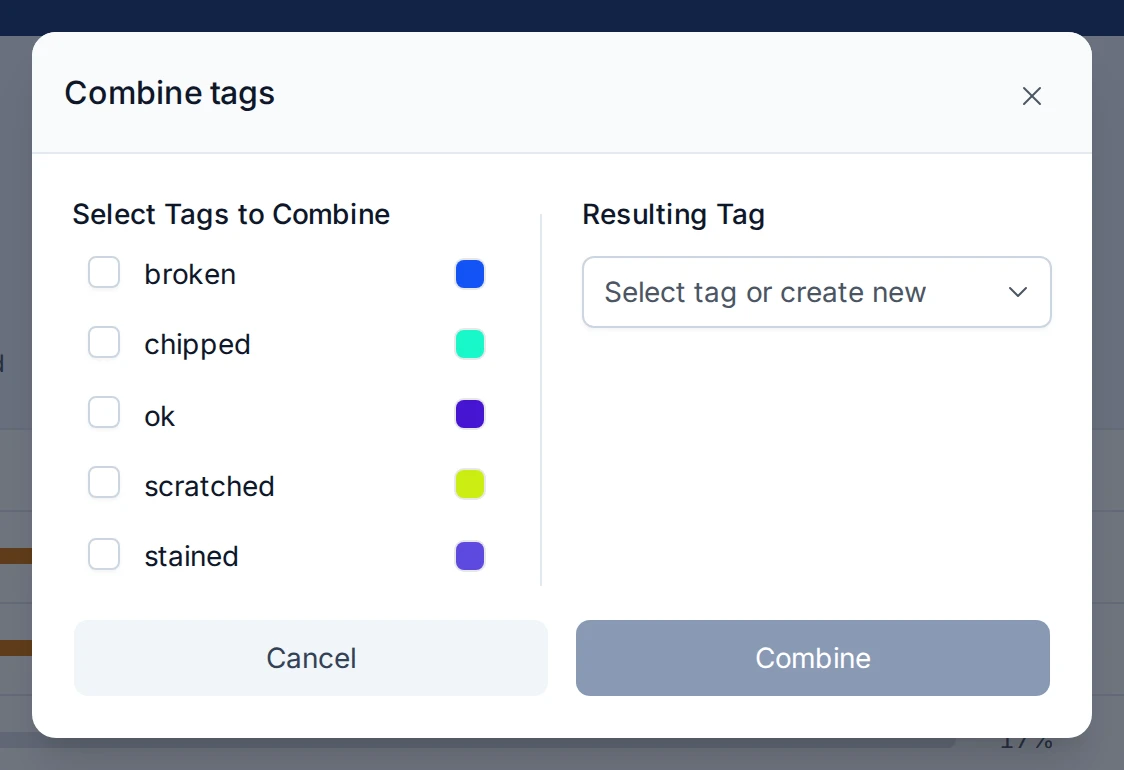
3. Choose the tags to merge
Under «Select Tags to Combine», tick the tags you want to merge, here «stained» and «broken».

4. Choose the tag they become
In «Resulting Tag», choose the tag they become: one of the dataset, or «New Tag» to create one, here «defect». Below, the dialog says how many images will change their tag.

5. Combine them
Click «Combine». The images of the tags you ticked take the resulting tag, and those tags are deleted. In a detection or segmentation dataset the boxes and masks change tag in the same way.
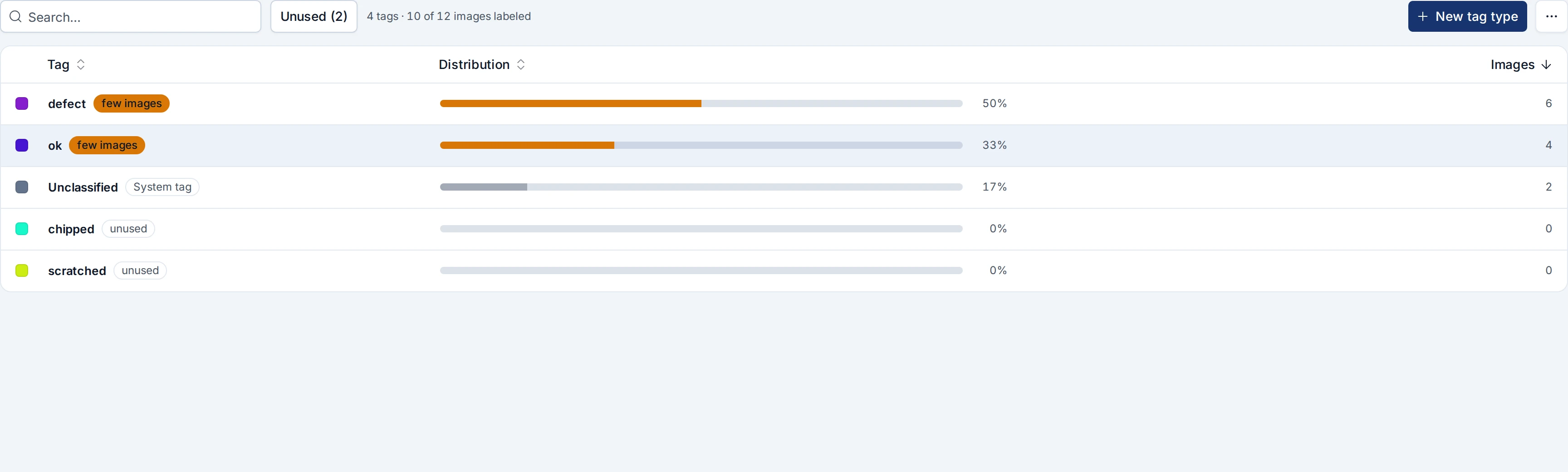
6. Delete a tag
Click the row of the tag, here «scratched», created by mistake. In «Edit tag», click «Delete».
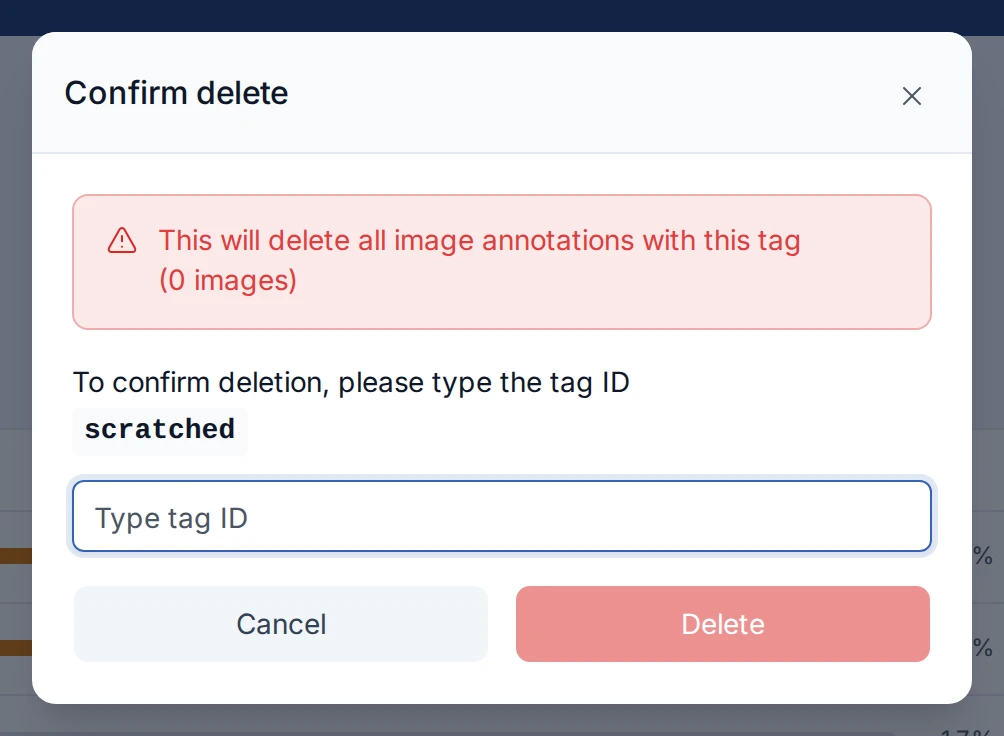
7. Confirm with its ID
To confirm, type the ID of the tag, usually its name, and click «Delete». The images that had the tag go back to «Unclassified», and their boxes or masks with that tag are deleted.
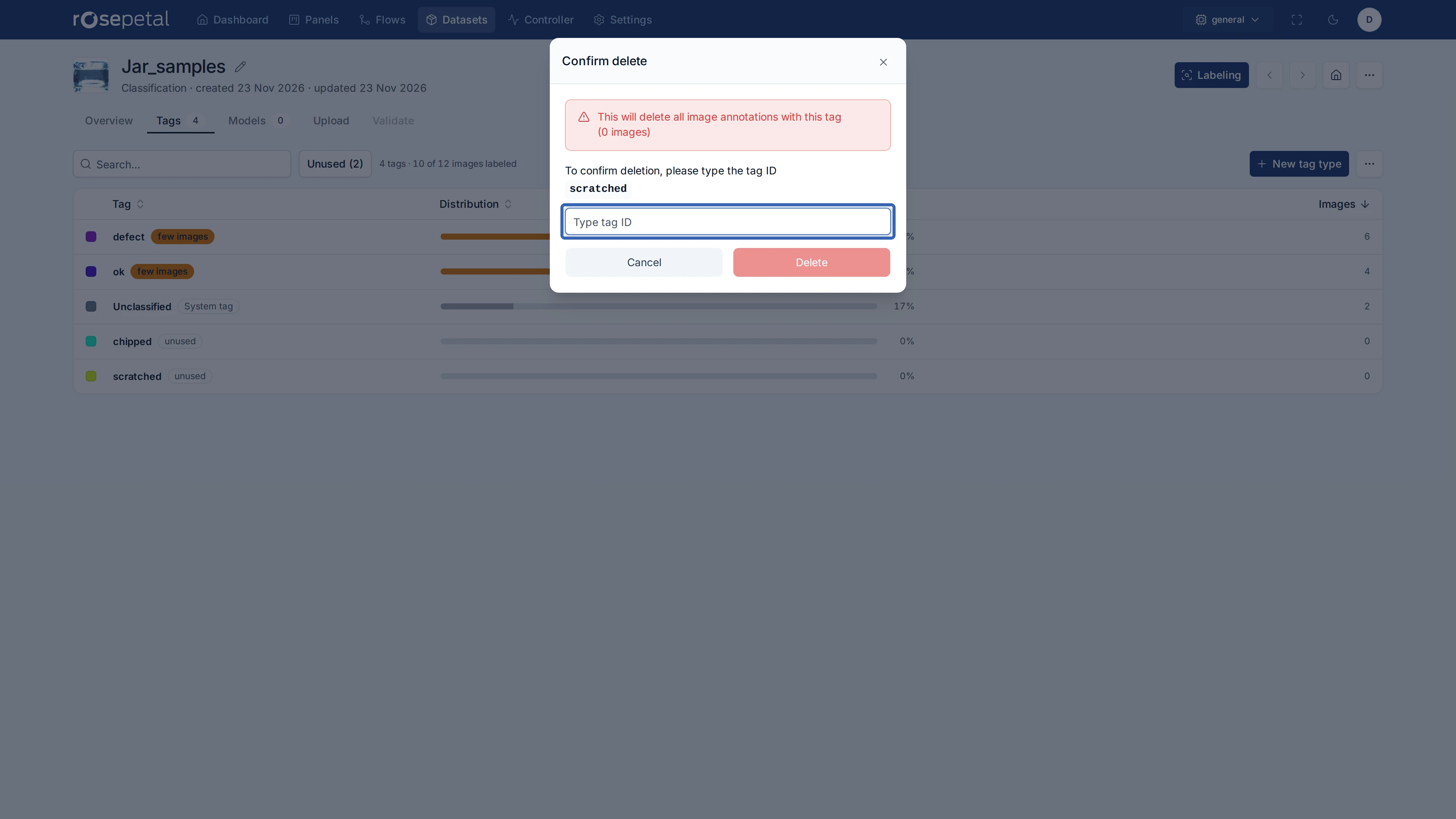
8. Delete the tags nobody uses
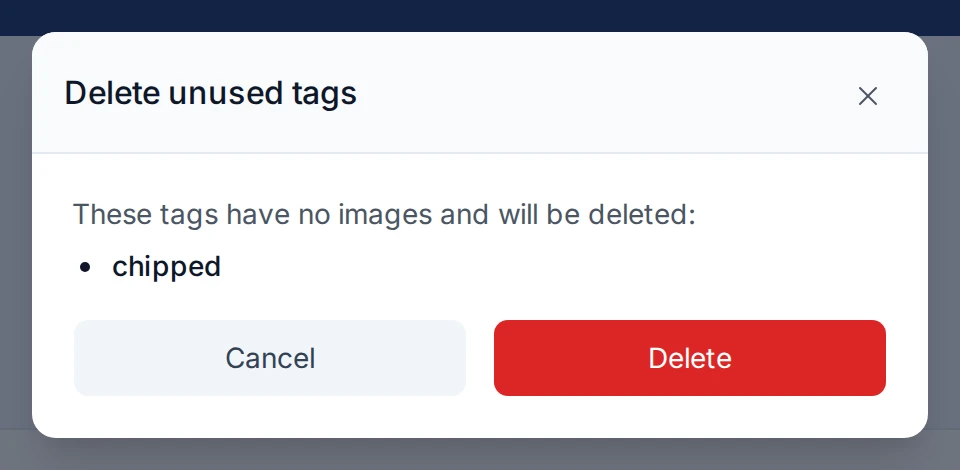
When some tags have no images, «More options» offers «Delete unused tags», with how many there are. It lists them before deleting them. The «Unused» filter, above the table, shows them first.
9. Confirm
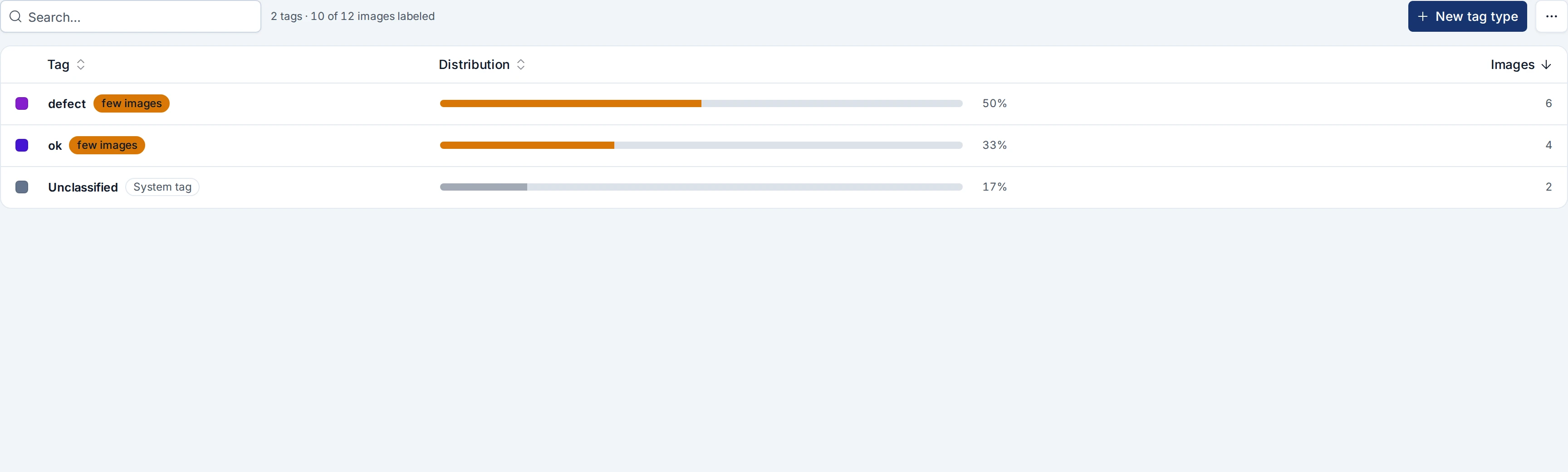
Click «Delete». Only the tags in use are left.
Clearing annotations and keeping the tags
«More options» → «Clear annotations» removes what images have been labeled with and keeps the tags, to label again from scratch. Tick the tags to clear, or «All items». When the dataset has groups, «Apply to» limits it to one group. In detection, segmentation and text recognition datasets, «Mark cleared images as pending» puts the images back in the list of those still to review. It cannot be undone either.
Next steps
Recorded on Rosepetal release 1.8.15.